Reusing work from another Overskill app
Attach one of your other Overskill apps to a chat so the AI can look at how you solved something there and build the same thing in the app you're working on.
You already built a checkout once. Or a booking flow, or a sign-up that finally behaved the way you wanted after three tries. When you start the next app, you shouldn't have to describe all of that again from memory and hope the AI lands on the same answers twice.
Attach the app you already built to the chat, and Overskill can go and look at how you did it.
💬 Ask your AI to reuse something you already built Attach the other app first — that's a button you press, not something the AI can do for you (see How to attach an app below). Then paste this into the chat:
Reuse the checkout from the app I've attached as a reference. Look at how it actually works there — including how it connects to the outside services it uses — and build the same thing here, adapted to this app. Tell me which keys I'll need to add. If something it depends on isn't available on my account, say so honestly instead of guessing.Two things the AI can't finish for you: it can't attach the app (you do that), and it can't bring your keys and passwords across. If your original app connects to an outside service, you'll be asked to paste that key in again here. That's on purpose — see Your keys never travel between apps.
Your other app is only ever read
This is the first thing most people want to know, so: attaching an app lets Overskill read it, never change it.
The app you attach is not edited, not republished, and not touched in any way. There is no write
side to this — everything the AI builds happens in the app you're actually working in. You can attach your busiest live app to a scratch project with nothing to lose.
You have to reach for it — the AI won't offer
Overskill doesn't know your other apps exist until you attach one. It will never say want me to look at your storefront?
, and it won't suggest this feature when you're stuck on something you've already solved elsewhere.
That makes this a control you go and find, which is why this article exists. If you want the AI to look at another app, attach it first — everything below is how.
How to attach an app in a chat
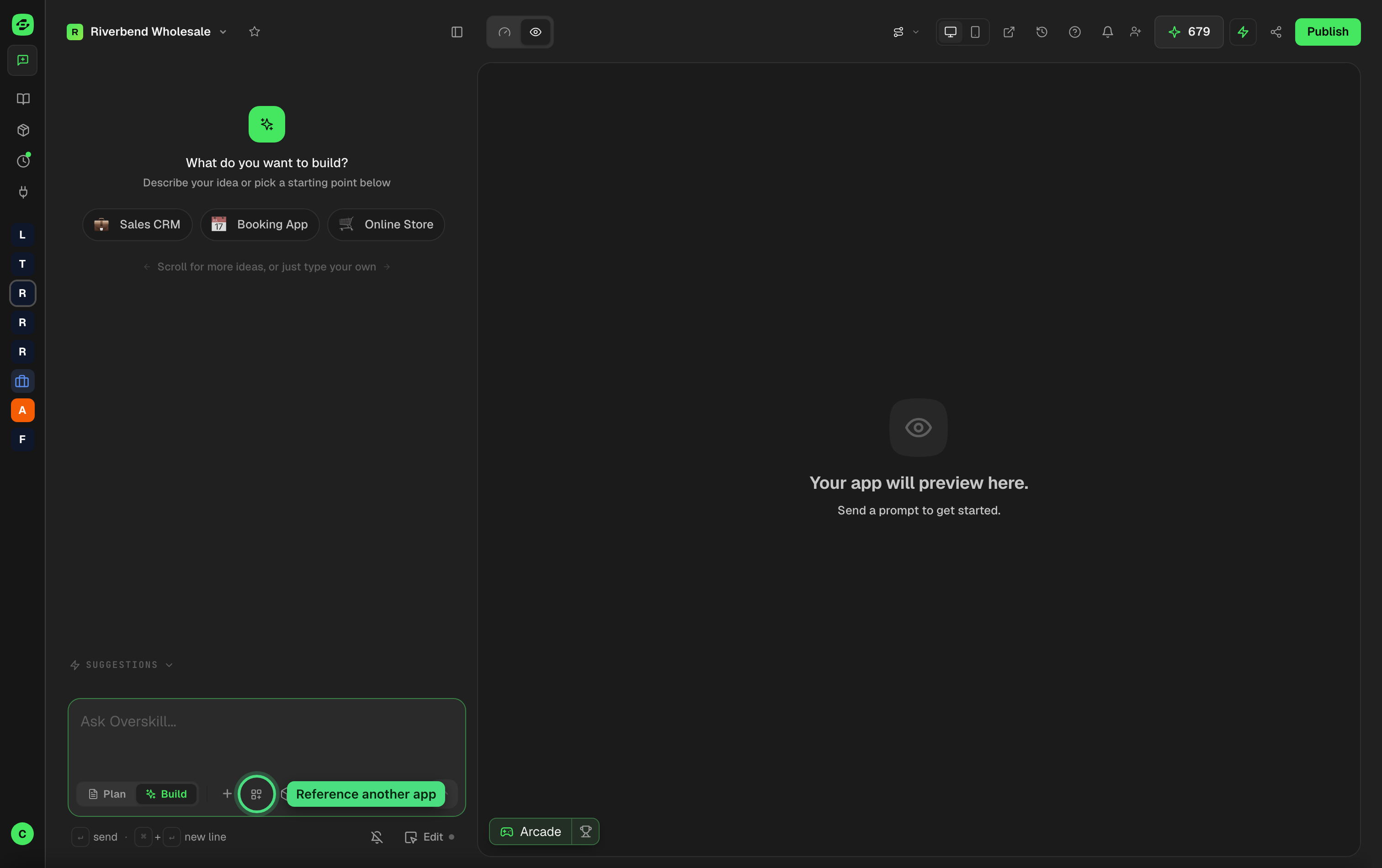
Where the button is. In the row of buttons under the message box, look for the small grid-with-a-plus icon. Hover it and it says Reference another app.
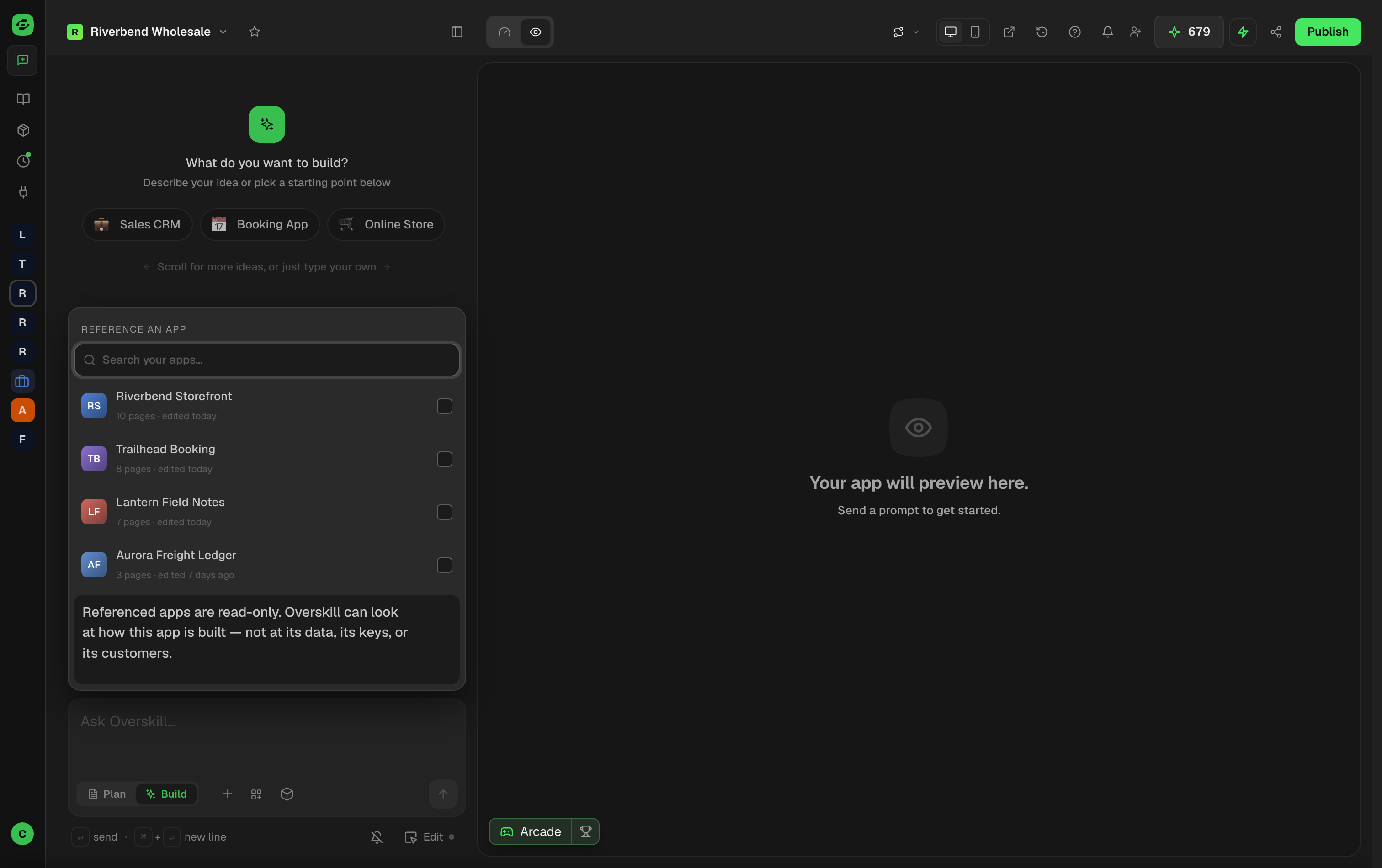
Pick the app. The Reference an app list shows your apps, most recently edited first, with a search box if you have a lot of them. Click the one you want.
That's it. The app you picked appears as a small tag inside the message box and stays there — across as many messages as you like — until you take it off.
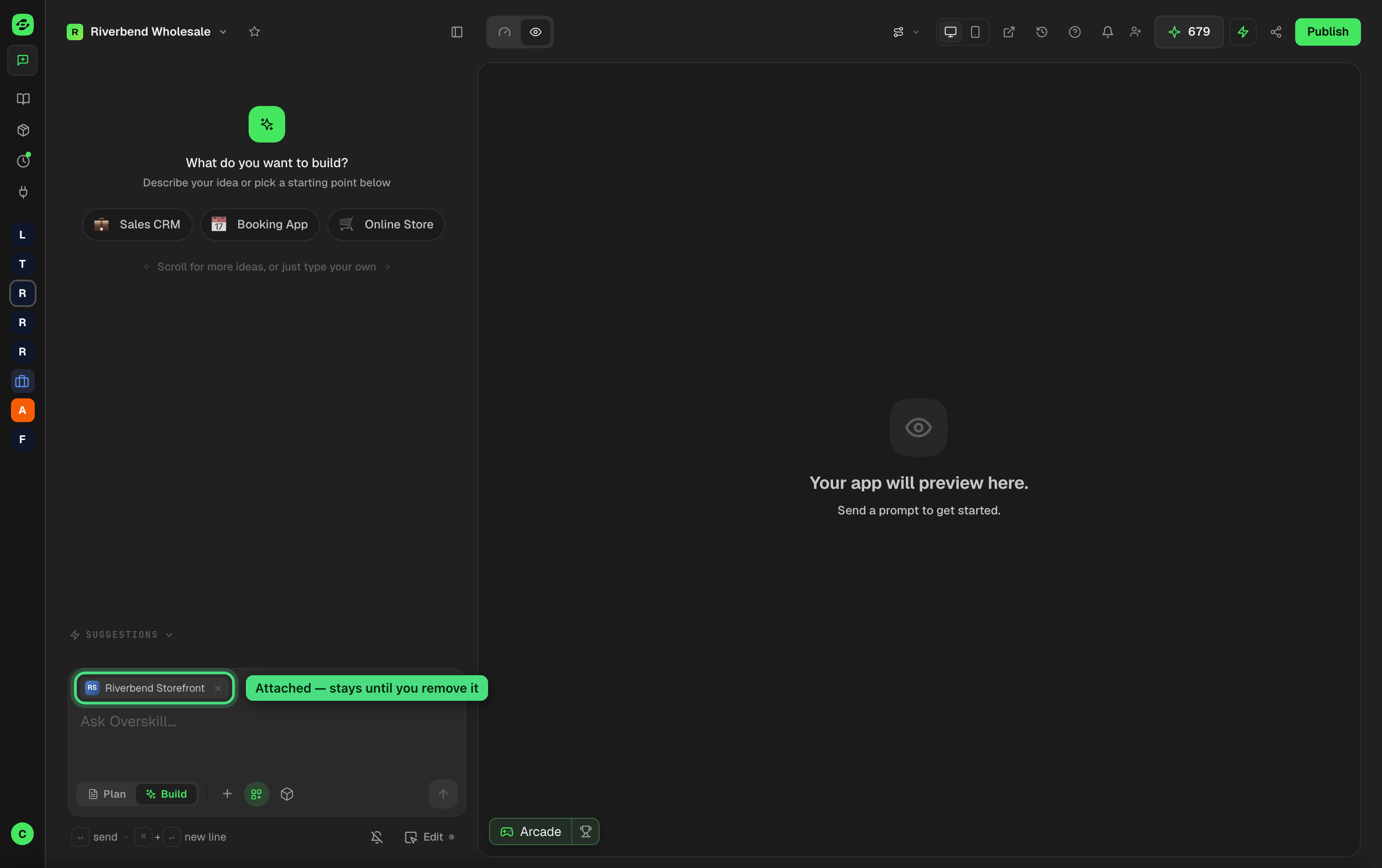
To remove it, click the × on the tag. Clicking the same app again in the list also unticks it.
Don't see the button? Two things have to be true: the feature is switched on for your account, and you have at least one other app in the same workspace. If you've only built one app so far, there's nothing to reference yet, so the button isn't shown.
Attaching before the new app exists
You don't have to wait until an app has been created. On your dashboard, open the + menu on the new-app box and choose Reference an app.
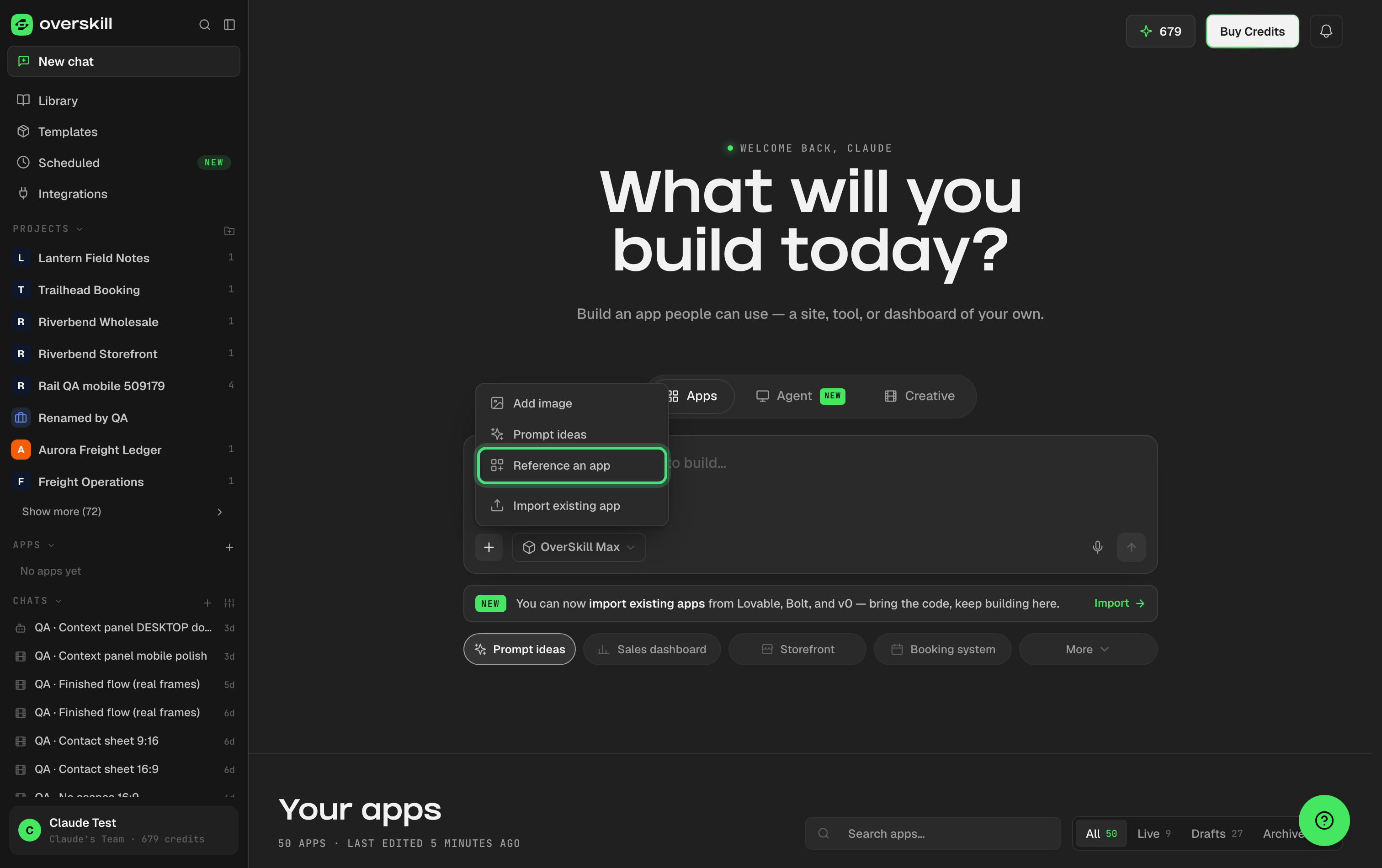
The app you pick rides along with your first prompt, so the new app can see it from its very first message — handy for build me a wholesale version of my storefront.
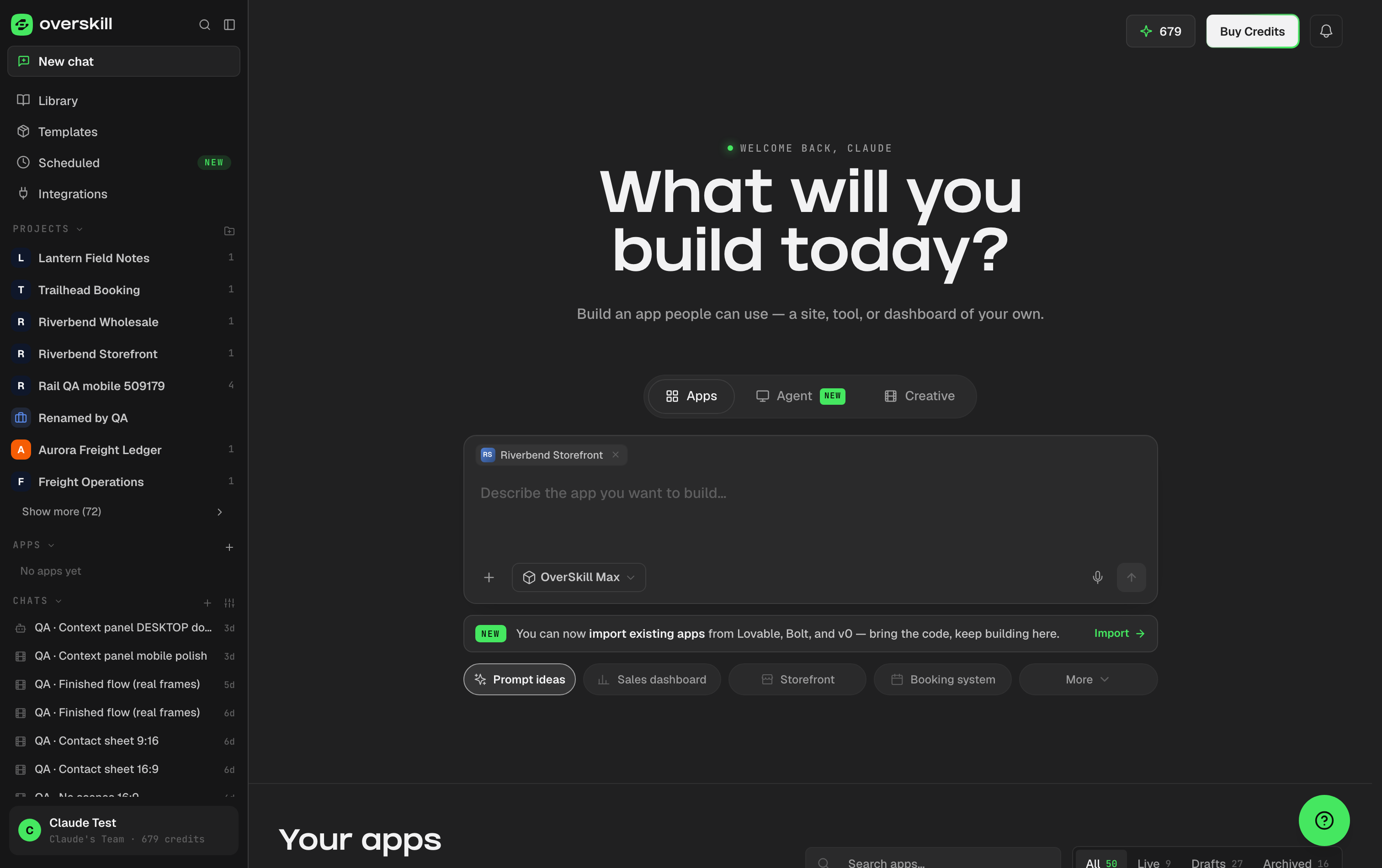
This one is for building apps specifically. If you switch the new-app box over to Agent or Creative, the attachment is cleared, because those don't build apps.
What the AI can look at
Once an app is attached, Overskill can go and read it when your question calls for it:
- How the app is built — it can search the app for whatever you're asking about and open the parts it finds, so it's working from what you actually built rather than a guess at it.
- The connections it makes to outside services — including how each one is wired up, which is usually the part that took you longest the first time.
- The names of the keys it uses — so it can tell you exactly which key to add here, by name. Never the keys themselves.
And it is told to check the attached app before it builds something new or tells you something isn't possible. That's the whole point of attaching it.
What it can't see, and can't do
- It can't change the app you attached. Reading only, always.
- It can't see that app's data or its customers. Not your records, not your users, not the conversations you had while building it — only how the app itself is put together.
- It never copies your keys or passwords. See below.
- It's one app at a time. Attaching a second app replaces the first.
- Both apps have to be yours, in the same workspace, and you have to be able to open the one you're attaching.
Your keys never travel between apps
Overskill will see that your other app uses, say, a Printful key — by name. It never sees the key itself. When it builds the same thing here, it tells you which key to add and asks you to paste it in.
That's deliberate. Copying a key between apps was considered and turned down: it's the same reason you wouldn't email yourself a password. It also means the new app's key is genuinely its own, so changing or revoking one doesn't quietly break the other.
One thing worth knowing, because it's the one case that behaves differently: this protection works by knowing which values are secret, and Overskill knows that because you saved them in your app's Environment Variables. A key typed straight into your app's own code was never marked as a secret, so it reads like any other line. Anything your app already shows the public — a public site key, for instance — isn't treated as a secret either, because it isn't one. If you have a key sitting in your code, move it into Environment Variables. That's worth doing regardless of this feature.
Three prompts to copy
1 — Reuse a whole feature, keys and all
Reuse the checkout from the app I've attached. Look at how it actually works there, including the service it connects to, and build the same thing here adapted to this app. List the keys I need to add. If something isn't available on my account, tell me instead of guessing.
Overskill searches the attached app for its checkout, opens the parts that matter, looks at how the outside connection is set up, then writes a version that fits this app — and hands you a list of keys to paste in.
2 — Reuse a layout or a structure
Lay out this app's settings page the way the settings page works in the app I've attached. Open it, tell me how it's structured, then build the same structure here with my own fields.
Good when you don't want the feature, you want the shape of it. Asking it to describe the structure first gives you a chance to say not that part
before anything is built.
3 — Just remind me how I did it
Search the attached app for how sign-in works and explain it to me. Don't change anything yet.
Nothing gets built. This is the how on earth did I solve this in March
question, answered from your actual app instead of your memory.
What to expect
- You'll get an adapted version, not a copy-paste. There's no
copy this file across
button, on purpose. Apps differ in their page names, how their pages link together, and which keys they use, so a word-for-word copy breaks — quietly, which is the worst way. Overskill reads the original and rewrites it to fit. - Say what you want from the attached app.
Reuse the checkout from the app I attached
gets you much further thanadd a checkout.
Attaching tells Overskill where to look; your message tells it what to look for. - Removing the attachment doesn't undo anything. Work already built here stays built. Taking the tag off just stops the AI looking at that app from now on.
- The attachment belongs to your chat. If a teammate is building on the same app in their own chat, they won't inherit it — they can attach it themselves. Worth knowing, though: anything the AI quotes back into this chat is part of this app's conversation, so a teammate who can open this app can read it.
Why this beats describing it
The AI is good at building from a description. It's better at working from something that already runs: your real setup, your real edge cases, and the three fixes you made after the first version didn't work.
Attaching the app is how you hand it that. The best moment to use it is the one where you catch yourself thinking I've done this before
— that's exactly when it pays.
Related: How to ask the AI for changes · What the AI can and can't do · Working with multiple apps