

Your Overskill app opens on its own, but the space where you embedded it is blank or says “refused to connect.” Before changing the app, separate three questions: which website contains it, whether the allowed-site change was published, and whether the visitor's task works inside that page.
This is a focused test for an app you are building in Overskill. You will leave with a specific next check and a record of what remains unknown. Download the embed diagnostic for eight address cases, a completed example and a blank card for your site. The example is fictional; it is not a report of a tested customer app.
Keep three checks separate.
A diagnostic for your app · Live results remain to be tested
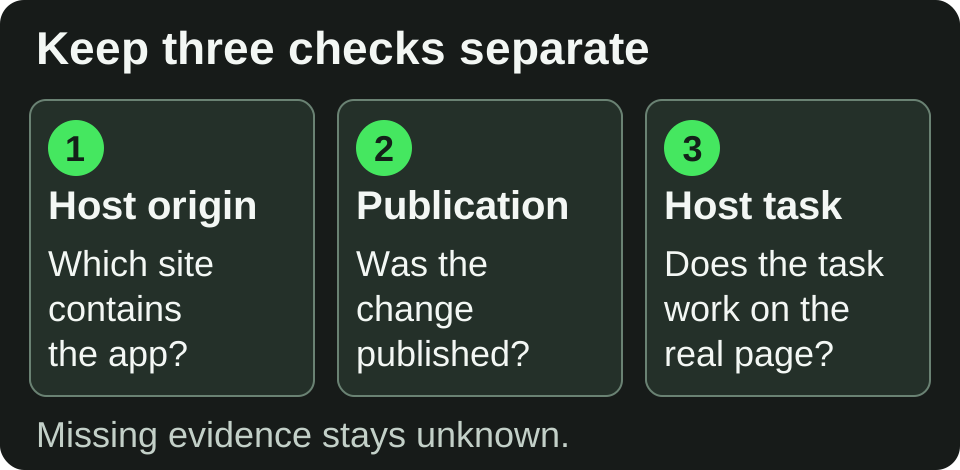
An original diagnostic map. Matching a host, recording publication and completing a visitor task are separate checks; this is not a screenshot or a tested app result.
Open full-size diagnostic mapIdentify the page that contains your app
The host page is the website around the embedded app. Its address differs from the app's own address. Open the final host page and record the address after any redirect; a page-builder preview may use a different address.
For https://www.cedar-workshop.example/book, the origin is https://www.cedar-workshop.example: the scheme and host, plus a port when one is specified. The /book path is not part of that origin.
Suppose a fictional workshop allowed https://cedar-workshop.example, but visitors arrive at https://www.cedar-workshop.example/book. Those hosts differ. That gives the creator a concrete candidate to correct. It does not establish which setting the live app is using or rule out another problem.
Overskill's embedding help explains the allowed-site format and the Settings steps. Use the exact site you intend to allow. A wildcard for your own subdomains still does not include the bare domain; a wildcard across a shared platform such as github.io is rejected. The downloadable cases distinguish accepted candidate formats from rejected inputs.
Keep saved and published observations apart
Saving an embedding setting does not update the published app. Follow the normal Publish step after an accepted change, then return to the real host page. These are separate observations in the fictional workshop's record:
Scroll horizontally to compare all columns.
| Checkpoint | What the illustrative record contains | Next check |
|---|---|---|
| Before the change | The app opens directly; the host page fails. The saved list names the bare domain. The deployed list is unknown. | Compare the final host origin with accepted settings. |
| After saving | The exact www entry has been accepted and saved. Publication is unknown. |
Confirm the relevant change was published. |
| After publication | The fictional record has a completed publish for that change. The host-page task has not been tried. | Reload the real host page and try the task. |
| After the host task | In the fictional example, a visitor chooses a workshop format and sees its explanation inside the page. | Record the browser, role and result; leave other journeys untested. |
Keep the earlier observations when you add a result. “The origin matches” and “the change was published” answer different questions from “the visitor completed the task.” If you cannot identify the relevant publish, record unknown.
Choose the next check from the evidence
If the candidate entry was rejected, correct that input using the help article. If the accepted entries omit the intended host, add only the site you mean to permit. If the host is already covered, avoid repeatedly changing the list: check publication evidence and the actual host-page task.
If a published change still leaves the embed failing, save the visible error and the two addresses. Note whether it fails on the final website, only in the page-builder preview, or only after sign-in. A page nested inside another frame has additional parents to account for; the browser checks the ancestor chain. MDN describes that behavior.
Frame permission alone does not establish that sign-in, cookies or the app's task works. The card gives these results separate fields. Keep tokens and private identifiers out of any diagnostic you share. Use the private-record access checks for access testing and the launch checklist for the wider release review.
Continue in Overskill
For an existing app, use the diagnosis to choose the next editor or browser check; the embedding instructions remain the settings guide.
For a new embedded tool, open the app brief builder. Describe the visitor, the task, the intended host site and what should be public or private. Review the generated brief, edit its input fields and choose Start build. The brief link imports no diagnostic and changes no embedding settings. Your account's usual access and credit requirements apply when building.