

An effective AI app brief names one user, one job, the information they need, and a test that proves the job works. Visual direction helps, but a beautiful screen is not a complete workflow. Start with an outcome you can demonstrate in a few clicks.
A real starting point · Quarry
Turn a project board into a precise brief.
Quarry’s renovation board gives a broad idea—‘keep clients updated’—a concrete shape. Describe the people, project record, status changes, and access rules behind a screen like this.
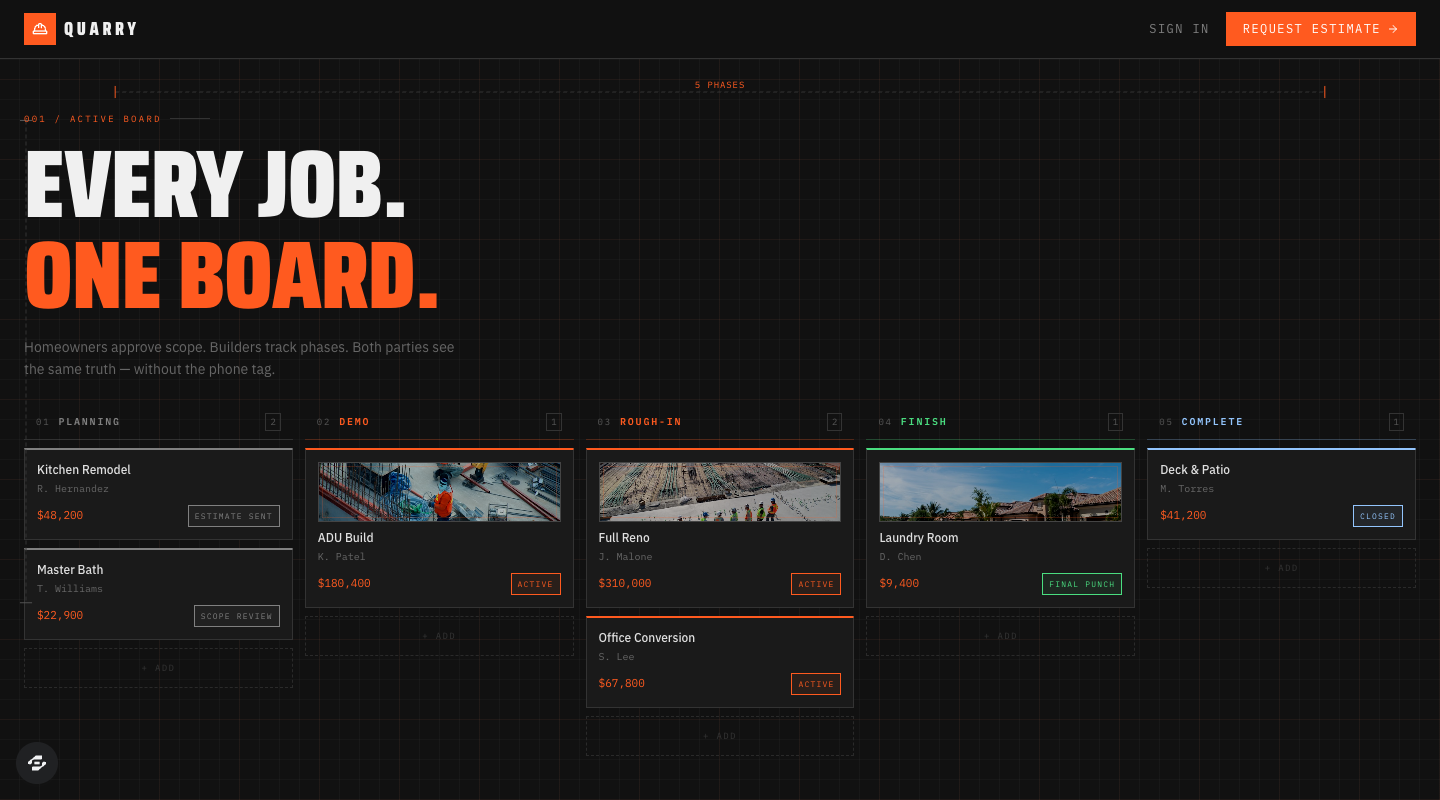
Quarry’s public example board groups projects into five phases. Borrow the clear progression and visible next step. Project names and amounts are illustrative preview content; private access and approval actions still need testing.
Preview captured · Open live preview · View full-size imageWhat to inspect
- Name the person and jobA homeowner wants to see the current phase. A contractor needs to update it. Put both actions in the brief.
- Describe the recordSpecify one project with an owner, phase, and update history. The board should be a view of those records.
- Define a passing resultAsk for two test clients: each should see their project, and only authorized staff should change its phase.
The board is publicly viewable. The remix page continues through signup or sign-in; check your account access and credits before creating a copy. Current plans and credits.
Start with the smallest useful promise
“Build a client portal” leaves almost every important decision open. Try: “A design agency's clients can submit a request, see its status, and approve the final file. Each client sees only their own workspace.” That sentence identifies an audience, a useful action, and a privacy boundary.
For a first version, choose one core journey. A portal does not need invoicing, a social feed, an AI assistant, and a project marketplace to prove that clients can submit and approve work. Put those ideas on a later list. A smaller brief is easier to evaluate and less expensive to revise.
Use this five-part app brief
Scroll horizontally to compare all columns.
| Part | Write this down | Client-portal example |
|---|---|---|
| Person | Who uses it, and in what situation? | A client requesting design work from an agency |
| Job | What should they finish? | Submit a request and approve a delivered file |
| Records | What must be saved? | Clients, requests, attachments, status, comments |
| Access | Who can read or change each record? | Clients see their workspace; agency staff see assigned work |
| Proof | How will you check the result? | Two test clients cannot see each other's requests |
Describe the information as records rather than screens. A “dashboard” is a view of information; a request with an owner, status, and due date is something the app must store. Getting this distinction right helps the builder keep your interface and underlying data consistent.
Starting from a spreadsheet? Map the source rows to records before writing the prompt. The worked CSV example separates clients, requests and services, with a review log for rows that need a decision.
A worked first prompt
Copy and adapt this example. Replace the agency context with your own audience before you build.
Build a client portal for a small design agency.

First useful journey: a signed-in client creates a design request,
adds a brief, sees its status, and approves the final deliverable.

Records:
- Workspace: client name and assigned agency members.
- Request: workspace, title, description, status, due date, requester.
- Comment: request, author, message, created time.

Access:
- A client can read and comment on requests in their own workspace.
- Agency members can update requests in assigned workspaces.
- Check permissions on the server, including direct record requests.

Screens: request list, new-request form, request detail, and account.
Include helpful empty states, validation errors, loading, and retry.
Use clear type and a restrained visual style that works on a phone.

Build only this journey first. Use clearly labeled sample content.
Do not add real customer data, take payments, or send external messages.
Explain which parts need configuration and give me a test checklist.
This is an example specification, not a claim that every requirement has already been implemented. After generation, inspect what was actually built. Authentication alone does not establish workspace privacy; the record permissions need their own test.
Refine with evidence from the preview
Work through the app in the order your user will. Give the builder a specific observation, an expected result, and a scope boundary:
On a narrow phone screen, the New request button moves below the fold. Keep the request list unchanged, but place that primary action beside the page title and verify that its label fits without truncation.
Or describe a behavior:
When a request has no comments, show “Ask a question about this request” and a comment form. After submission, the comment should appear once and remain after refreshing.
Avoid asking for a complete redesign while diagnosing a save failure. Fixing one observable problem makes the next result easier to assess. Save a working milestone before changing the workflow.
Give the builder a definition of done
Test a new account, a returning account, an empty workspace, and an invalid submission. Refresh after saving; a temporary visual update is not proof the data persisted. Try the second client's record URL while signed in as the first. The expected outcome is denial, not simply a hidden navigation link.
For payments, email, or integrations, record which connections are configured and which still need setup. Use test facilities where supported. Do not confuse a generated button or a success-looking screen with a completed external transaction.
Turn the brief into your next step
Use the app brief builder to assemble your own starting prompt. Your draft stays in your browser until you choose to copy it. Then inspect a relevant template, or start with your own brief through Overskill signup.
If you already found a promising starting app, read remix or build from scratch. Before inviting customers, follow the AI app launch checklist. Current product details and plan terms are on How it works and Pricing.