

An exception dashboard should tell an owner which records need attention, why each record is there, and what to do next. Define those rules before choosing chart colors. Every summary count should lead to the exact records that produced it.
Consider Harbor Print Desk, a fictional print shop with 12 jobs. At noon, its dashboard shows 4 overdue, 3 waiting on a customer, and 4 unassigned. That is 11 flags on 7 distinct jobs. Adding the cards would overstate the workload because one job can need several kinds of attention.
Use the exception dashboard worksheet to work through the rules. Download the example dataset. This is a planning example with checked arithmetic, not a running dashboard or a report of customer results.
Count each job once.
Harbor Print Desk · Fictional exception rules
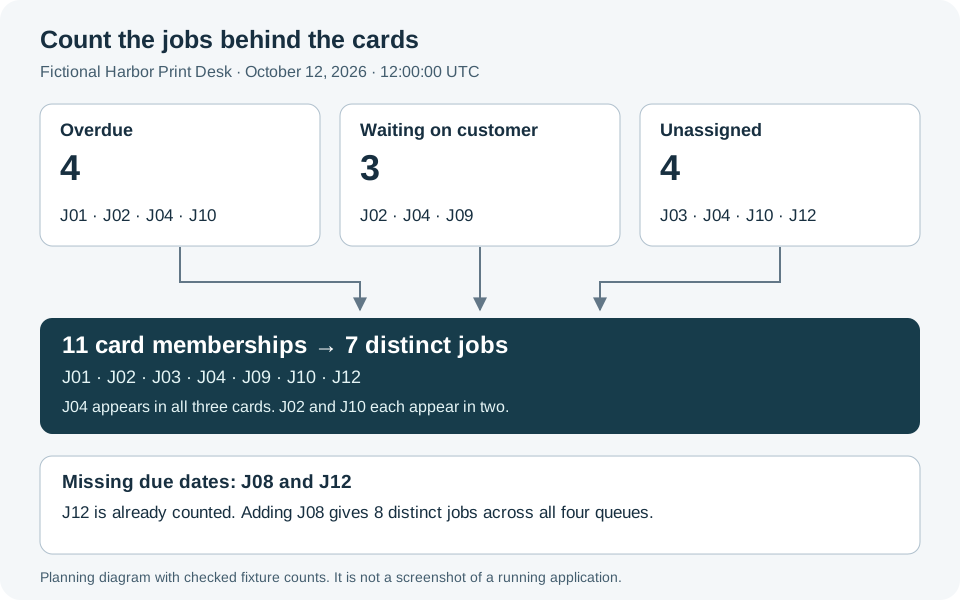
Fictional Harbor Print Desk at October 12, 2026, noon UTC. J04 appears in three cards; the combined total counts each job once. This is a planning diagram, not a running application.
Open full-size count diagramGive every card a rule, an owner, and an action
For this example, open and waiting_customer jobs are active. Completed and canceled jobs remain in the dataset but leave the attention queues. The frozen cutoff is October 12, 2026, at 12:00:00 UTC. Dates use whole-second UTC timestamps.
Scroll horizontally to compare all columns.
| Card | Exact rule for an active job | Who acts | Useful next step |
|---|---|---|---|
| Overdue | A known due time is earlier than the cutoff | Job owner; dispatcher if unassigned | Review the missed commitment and record the next action |
| Waiting on customer | Status is waiting_customer
|
Job owner; dispatcher if unassigned | Identify the missing decision or material and agree on the next follow-up |
| Unassigned | Owner is absent | Dispatcher | Assign an accountable owner |
| Missing due date | Due time is absent | Dispatcher and job owner | Confirm whether a due time should be set; lateness is unknown |
The last card is a data-quality queue. A missing due date does not mean a job is on time, and it does not prove that it is late. Keep that uncertainty visible. If your workflow allows work with no deadline, model that as an explicit policy rather than treating an empty field as an answer.
Likewise, “waiting on customer” means a dependency exists. It does not automatically mean a reminder should be sent now. Record the next follow-up separately; the card itself sends nothing.
Reconcile the cards to their records
The worksheet includes every source row. Here is the baseline answer key:
Scroll horizontally to compare all columns.
| Card | Matching job IDs | Count |
|---|---|---|
| Overdue | J01, J02, J04, J10 | 4 |
| Waiting on customer | J02, J04, J09 | 3 |
| Unassigned | J03, J04, J10, J12 | 4 |
| Missing due date | J08, J12 | 2 |
J04 is waiting on a customer, has no owner, and is overdue. It correctly appears in three lists. J02 appears in two lists, and J10 appears in two. The first three cards therefore contain 11 memberships across 7 jobs. Label a combined operational total “7 jobs with operational exceptions,” rather than “11 jobs.”
The missing-date queue adds J08; J12 is already unassigned. Including that queue gives 8 distinct jobs needing attention and 13 card memberships. Of the 12 source jobs, 2 are closed and 10 are active. Those 10 active jobs reconcile to 8 needing attention under these rules and 2 with no listed exception: J07 and J11. “No listed exception” is a narrow result, not a guarantee that the work is healthy.
J07 is due exactly at the cutoff. It is not overdue under the strict “earlier than” rule. One second later, with the same records, J07 joins the overdue list: 5 overdue, 8 distinct operational-exception jobs, and 9 distinct jobs across all four queues. If your business uses a grace period, define and test that different rule explicitly.
Resolve one job and update every affected view
Now change only J04’s status to completed, keeping the same noon cutoff. Treat completion as an input from the workflow; this example does not establish whether a worker has supplied adequate completion evidence.
Scroll horizontally to compare all columns.
| View | Before | After J04 is completed |
|---|---|---|
| Overdue | 4 | 3 |
| Waiting on customer | 3 | 2 |
| Unassigned | 4 | 3 |
| Missing due date | 2 | 2 |
| Distinct operational-exception jobs | 7 | 6 |
| Distinct jobs across all four queues | 8 | 7 |
J04 disappears from three attention lists, but its record stays in history. The operational cards now contain 8 memberships across 6 jobs. This worked change is useful during a build review: if the row disappears but the count does not change, the views disagree.
Keep the cutoff fixed when testing this change. Advancing the clock at the same time would add J07 to overdue and obscure the effect of completing J04. The resource includes the completion case and the one-second-later case as separate examples.
Make the drill-down explain the count
Start each list with the job ID, work label, reason it appears, owner, due time, and next action. A row can show several reason labels. Open the job record for the actual workflow action; a dashboard flag alone should not complete work, change a deadline, or send a message.
Carry the same scope, permission boundary, filters, rule version, and data snapshot from card to list. A count for one owner must not open a list for the whole shop. If the list is paginated, show both the total matching count and the range currently displayed. Three visible rows on page one are not necessarily three matching jobs.
Display the cutoff and refresh time. If data is cached, refresh the count and matching list together or clearly identify that they come from different snapshots. Do not leave a stale positive count next to an empty current list without an explanation.
Show a useful zero state, such as “No overdue jobs in this scope as of 12:00 UTC.” Keep missing-data counts visible even when overdue is zero. Use text labels and usable table headings; color can reinforce a reason but should not carry it alone. The app design review covers the broader visual and interaction checks.
Turn the answer key into a build brief
Write the predicates, matching IDs, boundary examples, owner, and action into the app brief before requesting the screen. A compact brief for this example is:
Build an internal print-job attention dashboard. Use the supplied fictional records and four explicit card rules. Count distinct job IDs for combined totals. Each card must open the exact matching records using the same cutoff, scope, and snapshot. Retain completed jobs in history. Show missing due dates separately. Pass the baseline, completed-J04, one-second-later, empty-scope, and all-closed cases before using real records.
Overskill’s internal-tools page is a relevant starting point for exploring the build. The worksheet is the acceptance contract: verify its row IDs and counts in the actual implementation, then test permissions, saved changes, filtering, and refresh behavior before relying on the dashboard in daily work.