

A square card cuts off the edge of a lamp. Before replacing the image or redesigning the page, name what must stay visible. One off-center subject may need a different crop position. Two subjects far apart may need a different layout.
Use this optional Part 3 exercise to prepare one precise image request for Overskill. Open the worked comparison, then use the image-placement handoff to record your choice. The examples use two original fictional desk illustrations; they demonstrate placement decisions, not a tested image-editing or saving workflow in Overskill.
Compare two image decisions
These original fictional illustrations are 1200 × 800. The square frames below shrink with this page; their crop proportions stay the same. Inspect small details again at the actual destination size.
One required subject: keep the whole lamp

Fill the square · centered
Fill the square · align right
Keep the whole image
Two required subjects: keep the notebook and lamp
Fill the square · centered
Fill the square · align right
Keep the whole image
Retained describes the fixed crop geometry. It does not establish a usable detail size or a saved app result. The captions provide the equivalent image information.
Optional: wide and portrait examples, exact geometry
The full answer key covers both sources in wide, square and portrait frames, with centered cover, right-aligned cover and contain. All 18 cases keep the same required objects. Stretching is a separate failure because it changes their proportions.
Download the readable answer key · Download exact geometry JSON
Keep the whole subject, not just its center
In Source A, the green lamp sits toward the right of a 1200 × 800 illustration. The requirement is to retain the entire lamp.
A centered crop that fills the square card cuts off part of its right edge. Moving that crop to the right retains the complete lamp while keeping the card square and the illustration's proportions. The same right alignment also retains this lamp in the narrower portrait example.
This is a specific repair for this image. A centered subject, a different card shape, or a second required object could need a different choice. Compare the result at the actual desktop and phone sizes where people will use your app.
Recognize when moving the crop cannot work
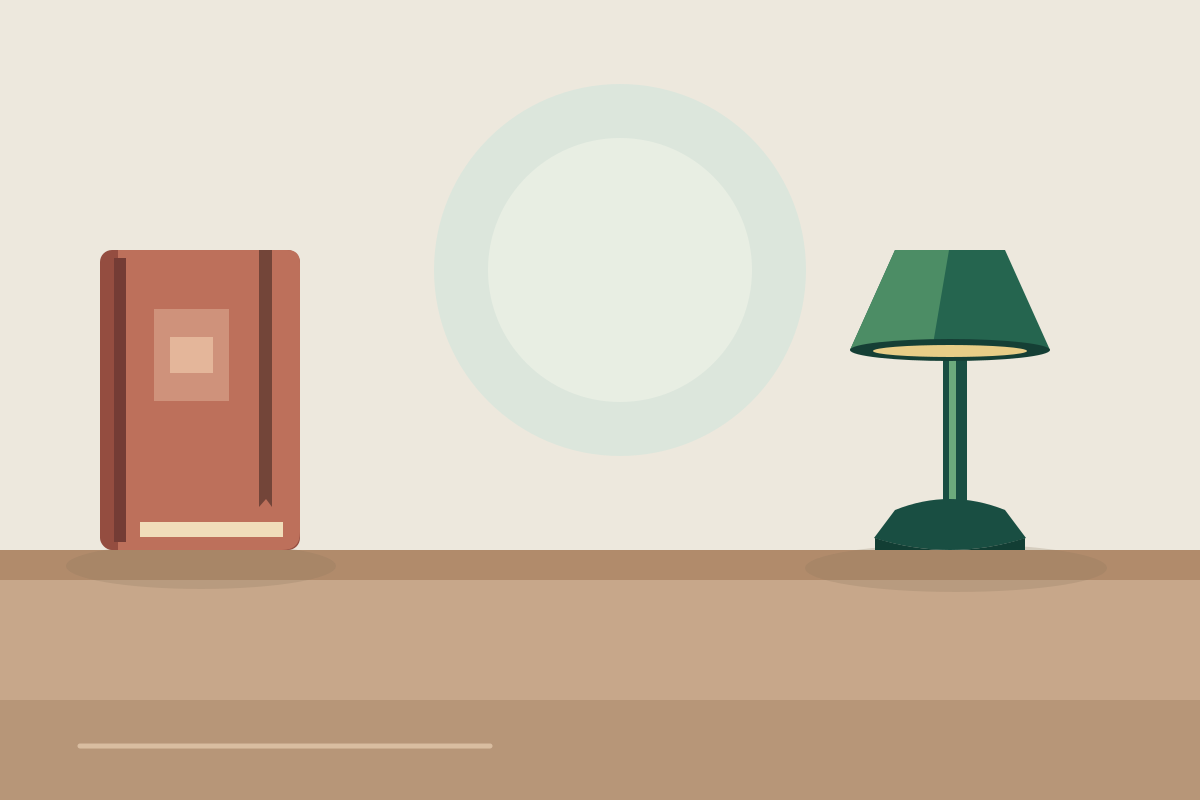
Source B adds a notebook on the left. Both the notebook and lamp are required; losing either is a failed placement.
Together they span 950 pixels of the source image. A square crop can show only 800 pixels of its width. Moving the crop cannot fit 950 into 800. The portrait crop shows even less. This is why moving the lamp into view can push the notebook out.
Choose between these useful alternatives:
- Show the whole image. The example's “contain” treatment preserves both objects, with space above and below them. Check whether the smaller objects remain clear enough.
- Change the composition or destination. Use an image with the required objects closer together, or give them a wider space. The example's wide hero retains both.
Stretching the image to fill the square changes its proportions. It does not solve the composition problem. MDN explains how cover, contain, and fill differ, and how position changes alignment. The answer key contains the optional calculations and all 18 cases.
Give Overskill one placement request
For an existing app, identify the page and component, confirm you may use the image, and make the chosen asset available through a supported input. Then adapt this request in the app's composer:
In the square desk-lamp card, use the supplied Source A illustration. Keep the complete green lamp visible by aligning the crop to the right and vertically centered. Preserve the image's proportions and the square card. Change only this placement, and keep the adjacent caption “Green desk lamp — fictional illustration.”
The completed handoff adds the exact asset identity, required region, and inspection fields. If the image or named component is unavailable, resolve that first. This request does not establish that an upload, crop control, or saved result has been tested. Overskill's guide to asking for changes covers the broader prompting approach.
Choose the text alternative for the image's role too. Describe meaningful information when nearby text does not provide it. If the image alone is a link, explain the destination or action. If equivalent adjacent text already supplies its meaning, an empty image alternative can avoid repetition. The W3C decision tree helps distinguish these cases; the worksheet includes examples.
Inspect the result before calling it finished
Record whether the complete required content remains visible, proportions look right, and captions and small details are readable at actual desktop and phone sizes. Then check the saved result after reloading. Leave any unperformed check marked Not tested.
If rights, required content, or the destination are unknown, keep the existing placement while you resolve them. If both required subjects cannot fit, choose a whole-image treatment or a different composition rather than quietly dropping one.
Starting a new app? Open the brief builder, edit its inputs for your reader's task, review the generated prompt, and choose Start build. Keep the image handoff alongside that brief: the link imports neither the worksheet nor the assets. For a review of the rest of the screen, continue with Make an app easier to use.