

Record one useful action that a viewer can understand and check. A strong app demo explains the starting situation, shows a deliberate change and makes the result readable. It also says what the recording does not prove. That makes the video useful to a prospective customer and to the person deciding what to improve next.
Watch the 35-second Scenario Lab example: one expense changes, the result updates, and the original value returns. The silent recording uses the actual public demo with fictional data. Then use the editable shot list to plan your own capture and record its results.
Choose a question the screen can answer
Start with a viewer's question, such as “How does this cost change the scenario?” That question gives the recording a beginning and an ending. A tour of every menu often leaves the viewer unsure which part matters to their work.
For the worked exercise, open ChiroGrowth Command's public Scenario Lab. It uses fictional business inputs to compare scenarios. The September 14 recording changes the added monthly fixed expense from $1,500 to $10,000, then restores $1,500 while keeping the other inputs unchanged. Neither edit was saved.
The viewer should see how a client-side calculation responds to one changed assumption. Keep that promise specific: this exercise does not test saving, private-account access or real business results.
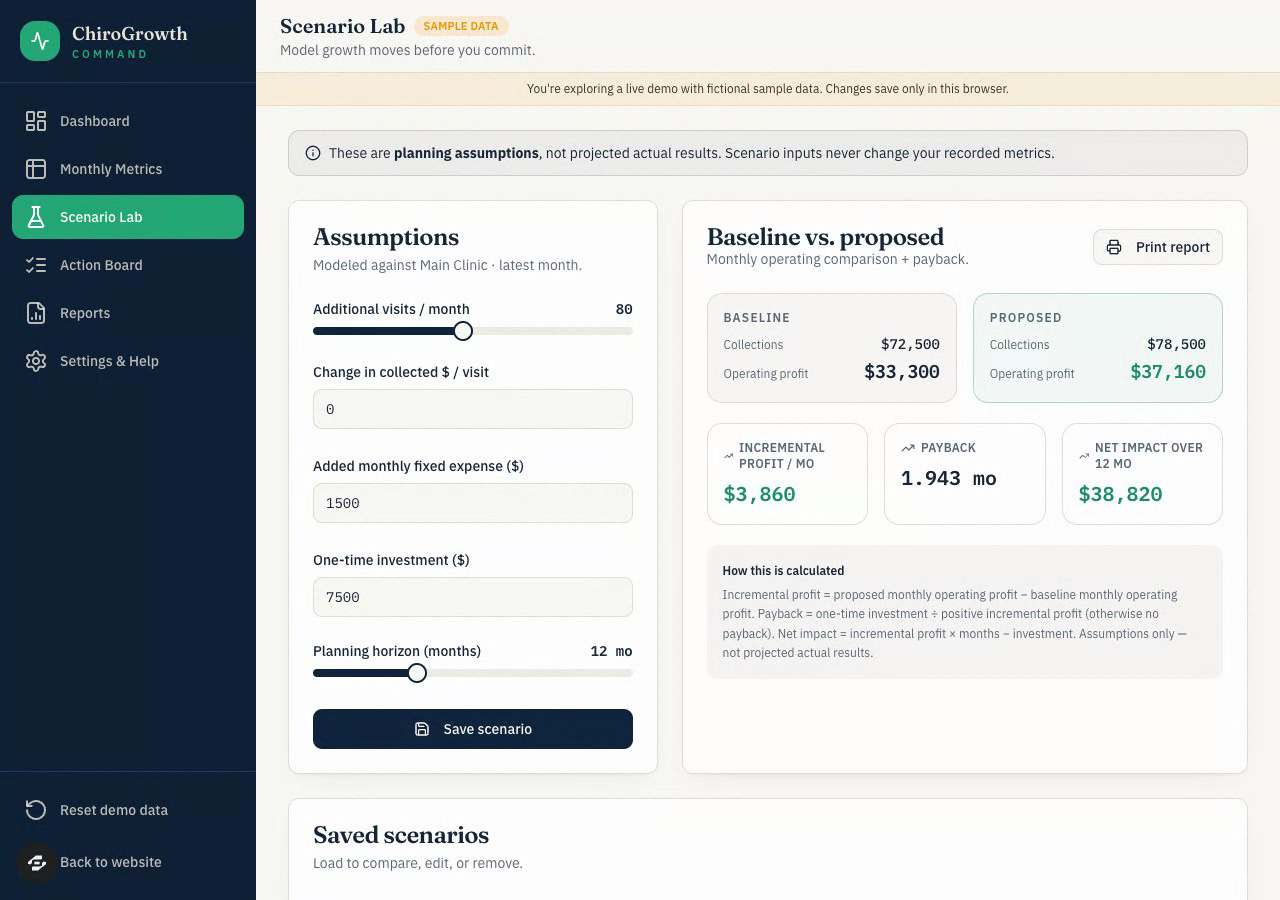
A frame from the September 14, 2026 recording. The expense field and calculated result are visible together; the video changes the expense and restores it without saving.
Open full-size imageThe starting frame keeps the expense field and its result in view. The recording shows three states:
Scroll horizontally to compare all columns.
| State in the recording | Added monthly fixed expense | Incremental profit / month | Proposed operating profit |
|---|---|---|---|
| Start | $1,500 | $3,860 | $37,160 |
| Increase the expense | $10,000 | −$4,640 | $28,660 |
| Restore the original expense | $1,500 | $3,860 | $37,160 |
The text equivalent describes the same sequence; the worked MCP case explains the demo's broader scope.
Know the expected result before pressing Record
Write down the relevant inputs and calculate the expected change independently. For this exercise, use 80 additional monthly visits, $75 collected per visit, $8 variable cost per visit and a $0 visit-price change. Their contribution before the added fixed cost is:
80 × ($75 − $8) = $5,360
At $1,500 added fixed cost: $5,360 − $1,500 = $3,860
At $10,000 added fixed cost: $5,360 − $10,000 = −$4,640
After restoring $1,500: expected additional profit returns to $3,860
The recorded values match this calculation: raising the cost by $8,500 reduces the displayed incremental profit by $8,500. The proposed operating profit also changes, from $37,160 to $28,660. Keep that total separate from the additional profit calculated here. Both are demo calculations, not business outcomes.
Check the actual starting inputs before recording. If the public demo has changed, update the plan or use an authorized test copy. Do not force the narration to match an old screenshot. If the calculation disagrees, keep the discrepancy as a test finding and investigate it before presenting the result as correct.
Plan three readable shots
You can capture the exercise as one continuous action. The shot list describes moments the viewer needs to understand, not a requirement to make three separate clips.
Scroll horizontally to compare all columns.
| Moment | Show on screen | What to explain |
|---|---|---|
| Starting state | Relevant inputs, $1,500 added fixed cost and the actual displayed result | These are fictional assumptions; identify additional profit separately from total profit. |
| Changed assumption | Change only the added fixed cost to $10,000 and show the resulting calculation | A higher fixed cost changes the scenario. Read the observed result and compare it with your expected value. |
| Restored state | Restore $1,500 and show the result again | The original assumption and calculated additional profit are back. |
Keep the input and affected result visible together when possible. If they cannot fit legibly, show the change, then move to the result while keeping the relationship clear. Avoid jumping to an unrelated part of the app between them.
Prepare the capture area
Use fictional data and an account or public demo you are allowed to record. Close unrelated panels, notifications and sensitive documents before selecting the recording region. Check the actual selected area: a browser window can include a profile menu, bookmarks or another tab that should not appear.
Choose a size that keeps labels and numbers readable in the final player. A large desktop capture reduced to a phone can make the important details too small. Prefer a focused view of the task to a wide screen full of unused space. Preserve enough context that the viewer knows which field is changing.
Set the microphone deliberately. A silent recording with an accurate text explanation can work; narrated footage needs understandable speech and captions. Make a short test, open its file and check the cursor, text and audio before the main take. Preview it at the intended viewing size, not only full screen.
Record what happens, including the wait
Explain the starting question, change the field and let the result settle before moving on. Keep the pointer away from the number the viewer needs to read. Avoid moving faster simply because you already know the interface.
If an action fails, stop and decide whether the failure belongs in the lesson. You can demonstrate the correction or record another take, but do not edit away a failure in a way that implies an uninterrupted successful test. Label a cut that removes a meaningful wait or setup step.
After the exercise, verify that the changed input is back at $1,500. If restoring it fails, record that fact and resolve the state before leaving an authorized test environment. Do not submit forms, publish an app or trigger paid actions merely to make the ending look more impressive.
Write captions and a transcript from the footage
Play the finished take and write down what the viewer actually sees and hears. Describe the input being changed and the observed result. Avoid instructions such as “click here” when the transcript cannot show where “here” is.
For a silent take, a text equivalent can explain the three states and their calculation. For narration, captions should follow the spoken content and include relevant non-speech information. Place captions where they do not hide a field, result or control. Preview them at the size a reader will use.
Add timestamps only after checking the final edit. A planned 20-second section is not an observed timecode. Keep the transcript beside the video and update both if a cut changes the sequence. The shot-list worksheet has separate spaces for planned narration, observed results and final timecodes so these do not become mixed together.
Check the file and give the viewer a next step
Open the actual saved file and watch from beginning to end. Confirm that the intended region, input changes, result and restoration are present. Then check the embedded player, captions and transcript on desktop and phone. These are different checks: a playable local file does not establish a working public embed.
End with the same useful action the video taught. Link the public demo so a viewer can try the calculation, the MCP workflow to build and test, or the launch checklist to prepare a pilot. The Growth remix page starts a separate copy through existing account, access and credit steps.